Windows Installation
Step 3: Follow on Till you get the below screen , You need to click on Command Promt.
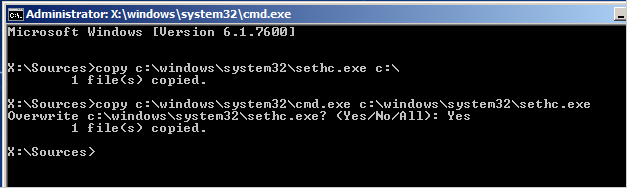
Step 4: Now The Real Trick,Type The below Command to backup the original Sticky keys File.
copy c:\windows\system32\sethc.exe c:\
Step 5: Now Copy The Command Prompt Executable on top of the sticky keys executable :
copy c:\windows\system32\cmd.exe c:\windows\system32\sethc.exe
Follow The below Pic For More Idea on It.
Step 6: Now Reboot Your PC.
Step 7: After Rebooting your pc, You will see a login Screen, All You need to do is Hit Shift Key 5 Times, You will get a Command Promt.
Step 8 : Now to Reset Your Password just replace The Username and passoword with your own In Below line.
net user MyNewPassword
Thats all Now you can Login.
you probably want to put the original sethc.exe file Back, Then You have to just reboot into the installationCD, Open the Command Promt Again and Copy The c:\sethc.exe file back to
c:\windows\system32\sethc.exe.
Enjoy, Keep Learning.
Enable Hibernate Mode in Windows 8
The bottom right hand hot corner presents power settings. If you do not
see the hibernate option there, then it probably means that it is
disabled or not active. Following steps should be performed to enable
hibernate option in W8.
First thing first, you need to edit registry to see whether the
Hibernate option has been disabled by default or not. In order to do
that, you should navigate to following path
HKEY_LOCAL_MACHINE\SYSTEM\CurrentControlSet\Control\Power
Note: Always
backup registry before you perform any task. It could make or break
your device. Having a backup in the handy place will always help in
rollback any changes (read mess) you made.
Step 1: Press WinKey + R to open run command.
Step 2: Type regedit and press enter button.
Step 3: This will open a registry editor module in the separate window. Now navigate to the below path.
HKEY_LOCAL_MACHINE\SYSTEM\CurrentControlSet\Control\Power
Step 4: As
displayed in the right hand pane (check below screenshot), look for the
option called HibernateEnabled. If the value of this registry entry is
0, then it means it is disabled. You should right click and modify the
entry to 1. This will enable hibernate mode in Windows 8.
Step 5: One
again, check the power option from the bottom right hot corner. If you
still aren’t finding Hibernate option, then perform the following steps.
Step 6: In case, if the hibernate option is not present, it indicates that you need to change power settings.
Step 7: Go to Control panel –> Hardware and Sound –> Power Options. You will find something similar to this.
Step 8: Select a ‘Choose what the power buttons do’ from the left hand menu option. It should bring something like this.
Step 9: You will find blurred out option. In order to enable them click on ‘Change settings that are currently unavailable‘ option as highlighted in the screenshot.
Step 10: Now
from there, select the Hibernate option. Save the changes. It should
bring the Hibernate option in the power button as shown below. There is
no need to restart for this operation to perform.
Isn’t it a piece of cake? Have you lost us somewhere in between or have
you any trouble understanding the steps above? Let us know, so we can
help you out to enable Hibernate option on Windows 8.
As all we know Laptops doesn't
generate the perfect amount of sound that the user can get out from a Desktop PC. Laptop PCs can't give the best and the highest sound level to hear some low voices. Even though we can Increase the Laptop Sound Level to the max than it can give. This trick is a simple tweak configuration steps
that's provided by Windows Vista, Windows 7 and probably Windows 8.
Here are the few steps I did to Boost my Laptop Sound Level to the maximum.
Steps::
1) Go to Start > Control Panel
2) Click Hardware and Sound
3) Click the Manage audio devices link.
4) Select the device that you are using
(e.g: Speakers ) then click Properties
5) Click Enhancements tab for all list of amelioration.
6) Check the effect that says"Loudness Equalization"
7) Click OK to apply all changes.
Done! Now open any media audio fileand test the new Perfect sound without any noises that can be generated by the speakers (totally perfect and clean).
Windows Repair is an all-in-one repair tool to help fix a large majority of known Windows problems including registry errors and file permissions as well as issues with Internet Explorer, Windows Update, Windows Firewall and more. Malware and installed programs can modify your default settings. With Tweaking.com - Windows Repair you can restore Windows original settings.
Windows Repair can do the following:
Reset Registry Permissions
Reset File Permissions
Register System Files
Repair WMI
Repair Windows Firewall
Repair Internet Explorer
Repair MDAC & MS Jet
Repair Hosts File
Remove Policies Set By Infections
Repair Icons
Repair Winsock & DNS Cache
Remove Temp Files
Repair Proxy Settings
Unhide Non System Files
Repair Windows Updates
and more...
download links :-
http://turbobit.net/yaeomz1m0ghf.html
| Full Version | 5.26/8.89 MB
Many Times the registry entries or files of our system got corrupted because of viruses or other reasons, in this case for repairing windows XP we format our system or repair windows xp by some other ways like by using Bootable cd method. But through this method we can repair our windows xp without using Bootable cd or Formatting System.
This Method is Called
Web Folders XP Repairing System.
Follow The Steps for Repairing Windows Xp :
Click On Start and Goto Run.
In Run Type webfldrs.msi
New Window Will Open In Your Screen Now Click On Select Reinstall Mode.
Again New Window Will Open In Your Screen Just Tick Marks On all the Options and Click Ok.
It Will Take Some Time in Repairing Your Windows XP and When the Process will be Completed it will ask to Restart your System then Just Restart your System.
That's It, By Using This Method Your Windows XP will be repaired without using bootable cd or Formatting.
Hi guys,
Today
let's see about another working internet speedup trick. There are many
tips and tricks available to speedup the internet connection. Already we
have discussed many tricks to speedup internet connection. Today we
will see how to speedup internet connection with top 10 high speed DNS
servers.
Nowadays DNS
servers have become a most important part in internet connection's
speed. Sometimes you might see dongle's strength is in very good
condition but the internet speed would be less. This all happen because
of DNS servers. When
you are using the default DNS provider from your ISP, it will be a slow
access. You can speedup internet connection by using high speed DNS
providers.

Here I have listed you the top 10 high speed public DNS servers.
TOP 10 DNS SERVERS
Level3:
Preferred DNS server - 209.244.0.3
Alternate DNS server - 209.244.0.4
Google:
Preferred DNS server - 8.8.8.8
Alternate DNS server - 8.8.4.4
ScrubIT3:
Preferred DNS server - 67.138.54.120
Alternate DNS server - 207.225.209.77
OpenNIC4:
Preferred DNS server - 69.164.208.50
Alternate DNS server - 216.87.84.211
Public-Root5:
Preferred DNS server - 199.5.157.131
Alternate DNS server - 208.71.35.137
Comodo DNS:
Preferred DNS server - 8.26.56.26
Alternate DNS server - 8.20.247.20
OpenDNS:
Preferred DNS server - 208.67.222.222
Alternate DNS server - 208.67.220.220
DNS Advantage:
Preferred DNS server - 156.154.70.1
Alternate DNS server - 156.154.71.1
Norton DNS:
Preferred DNS server - 198.153.192.1
Alternate DNS server - 198.153.194.1
SmartViper:
Preferred DNS server - 208.76.50.50
Alternate DNS server - 208.76.51.51
How to Speedup Internet connection with Top 10 High Speed Public DNS Servers?
Go to Control Panel
Then go to Network and Sharing Center
Click on Local Area Connection
Then click on Properties
After that, Select Internet Protocol Version 4 (TCP/IPv4) and click on Properties
OR
Double Click on Internet Protocol Version 4 (TCP/IPv4)
Now click on Use the following DNS addresses and change it as follows. Use any of above mentionedpublic DNS servers.
For exmple:
Then click on OK,
That's all you have done successfully !!
If you've been using the Windows 8 Release Preview on an Intel motherboard setup, and have been experiencing problems with your whole system freezing, then you're probably as insane and annoyed as I am with the issue.
To those that haven't experienced it, here's what basically happens: We'll be browsing around (in any browser!), and all of a sudden, the display will stop rendering, yet the mouse keeps moving. We're able to click on some things, and enter the metro start screen, but no apps will open and only some of the clicks will render changes on the screen. From this point, that's it, we have to hard reboot. I am actually able to get a system beep (and mouse freeze) by pressing Ctrl-Alt-Del and clicking around for a few seconds.
No, there is no BSOD, there is no "Your computer encounted a problem it couldn't handle" or any other sign of error. It just freezes, and it's horrible!
Anyway, good news for those that are experiencing it......
The Fix!
Some warnings first:
1; This is NOT a permanent fix. This needs to be solved my MS / Intel.
2; Depending on how you use your computer, you may notice degraded performance with this fix, but I am happy to trade that for a system that doesn't freeze.
3; Whilst I will do my best to help anyone with issues for this fix, I am not responsible for any damage you may cause to your system etc. etc.
If you already run a virtualisation environment such as VMWare or VirtualBox (with 64-bit VMs only), they will no longer work. The reason is that the Hypervisor doesn't expose the VT-x extension to it's virtual machines (including your new root), and so other virtualisation products can't be ran with full effectiveness. The obvious workaround to this problem is to convert your VMWare/VirtualBox VMs to Hyper-V, and import them using the Hyper-V Manager.
Here's the fix: Enable Hyper-V. By enabling Hyper-V on your machine, your root OS (which you use) will now run on top of a Hypervisor, which means it's essentially virtualised. It's not in the same sense as a virtual machine, as your OS will still have direct hardware access to essentials such as graphics cards for gaming etc.
Full steps:
- Open Desktop
- Win + C (Charms bar) (or Win+I for Settings directly)
- Settings
- Control Panel
- Programs & Features
- Turn Windows Features on or off
- Tick "Hyper-V" (and sub-components, although not required if you won't create virtual machines)
- Reboot (it will reboot twice to reconfigure your system completely)
That's it, now have fun browsing!
Please report your success / failure on this post, so I can start spreading it even more. I know a few people that have said it's solved their issues so no negative feedback now, and I'm 24 hours in to testing it.
Small update based on the few people who don't get this working: You need virtualisation extensions (VT-x) enabled in your BIOS/UEFI config, so go enable those first. You can confirm that the Hypervisor is running after reboot by looking in System Event Viewer and finding the 'Hypervisor successfully started.' log entry. If you see an error when starting and wonder why the fix might not be working, well that's why :)
Please do keep me updated, as soon as there's an official
fix I will let you guys know.
Today I was playing around with the keys in Firefox and I accidentally changed the font size on Firefox. The websites started looking funny as things were looking out of proportion.
Here’s the solution to revert back to the default font size on firefox, if in case you accidentally happen to change the the size of font, either increasing it or decreasing it.
Press Ctrl + 0 (here 0 is ‘zero’ and not the alphabet ‘O’).
If you want to increase the size of the font in Firefox, deliberately, then the keyboard shortcut for that is : Ctrl plus the + sign (plus sign on keyboard) and to reduce the size of the font in Firefox the keyboard shortcut is : Ctrl plus – sign (minus sign on keyboard).
How can I escape / exit full screen in Firefox?
My cat accidentally jumped on my keyboard and at that point Firefox browser was open. I have no idea which keys it stepped on, but my Firefox changed mode to full screen.
However, I managed to come out of the full screen mode of Firefox.
To exit full screen mode of Firefox, please press the “F11″ (Function 11) key.
This section describes how to identify hardware virtualization extensions and enable them in your BIOS if they are disabled.
The Intel VT extensions can be disabled in the BIOS. Certain laptop vendors have disabled the Intel VT extensions by default in their CPUs.
The virtualization extensions can not be disabled in the BIOS for AMD-V.
Verify the virtualization extensions are enabled in BIOS. The BIOS settings for Intel® VT or AMD-V are usually in the or menus. The menu names may vary from this guide, the virtualization extension settings may be found in Security Settings or other non standard menu names.
Procedure 32.1. Enabling virtualization extensions in BIOS
Reboot the computer and open the system's BIOS menu. This can usually be done by pressing the delete key, the F1 key or Alt and F4 keys depending on the system.
Select Restore Defaults or Restore Optimized Defaults, and then select Save & Exit.
Power off the machine and disconnect the power supply.
Enabling the virtualization extensions in BIOS
Note: BIOS steps
Many of the steps below may vary depending on your motherboard, processor type, chipset and OEM. Refer to your system's accompanying documentation for the correct information on configuring your system.
Power on the machine and open the BIOS (as per Step 1).
Open the Processor submenu The processor settings menu may be hidden in the Chipset, Advanced CPU Configuration or Northbridge.
Enable Intel Virtualization Technology (also known as Intel VT) or AMD-V depending on the brand of the processor. The virtualization extensions may be labeled Virtualization Extensions, Vanderpool or various other names depending on the OEM and system BIOS.
Enable Intel VTd or AMD IOMMU, if the options are available. Intel VTd and AMD IOMMU are used for PCI passthrough.
Select Save & Exit.
Power off the machine and disconnect the power supply.
Run cat /proc/cpuinfo | grep vmx svm. If the command outputs, the virtualization extensions are now enabled. If there is no output your system may not have the virtualization extensions or the correct BIOS setting enabled.
When attempting to set up or make network connections on a Windows computer, you may encounter a Limited Or No Connectivity error message similar to the following:
Limited or no connectivity: The connection has limited or no connectivity. You might be unable to access the Internet or some network resources.
This message can result from any of several different technical glitches or configuration problems. Follow these steps to resolve Limited Or No Connectivity errors in Windows.
Here's How:
- Determine whether your network access is functioning properly (that you can reach local network resources and the Internet). If you are using a broadband Internet and Windows XP Service Pack 2, this message is often a false error report. See Microsoft Knowledge Base article 892896 for details on how to work around this error appropriately.
If your network access is non-functional. continue to the following steps.
- If your computer connects to the network through a broadband router , resetting (powering off and on) the router may resolve the issue. If not using a broadband router, or if resetting your router only temporarily resolves the issue and the error message re-appears later, continue to the following steps.
- If connecting to your network using Wi-Fi and using wireless security, your WEP or other security key may not be set properly. Check the wireless security configuration on your computer's network adapter and update if it necessary.
- If connecting to your network using an Ethernet cable, your cable may have failed. Temporarily replace your network cable with a new one to determine whether this resolves the issue.
- If using a broadband router and DHCP on your network, check your computer's IP address to verify it is valid and not a private address that starts with 169.254. An invalid address of the form 169.254.x.x signifies your computer's inability to obtain a usable IP address from your router.
To resolve DHCP configuration problems, proceed to the following steps.
- Reboot your computer, router (if present) and broadband modem together, then re-test your connection.
- If your connection remains non-functional, run the Windows Network Repair utility on your computer.
- If your connection remains non-functional, update your router settings to change from dynamic to static IP address configuration, and set an IP address on the computer appropriately.
- If your connection remains non-functional, unplug your router and connect the computer directly to your broadband modem. If this configuration is functional, contact the manufacturer of your router for additional support.
- If your computer is connecting to your network directly through a broadband modem, or if your Internet access remains non-functional after following the instructions above, contact your Internet provider for support.
Introduction
“Windows cannot open this program because it has been prevented by a software restriction policy.” If you’re reading this, you’re more than likely intimately familiar with this message popping up on your screen. I’m also willing to bet that you’re pretty frustrated with trying to figure out what the hell is going on. Well, help has arrived.
I think what surprised me the most about this issue is how simple the fix is. I’d done a lot of searching on the internet, and every solution involved setting up group security policies, using a program called gpupdate.exe, and a slew of other options; none of which resolved the issue.
The Solution
Now on to the simple solution (I’m assuming you’re using Windows Vista Home Premium). In the Start Menu, click “Default Programs.” Next, click “Set Program Access and Computer Defaults.”
Now, scroll down to the “custom” box and check that. It will drop down a menu, giving a list of programs. Look for the heading “Choose a default media player:.” To the right of these programs, you’ll see a list of boxes saying, “Enable access to this program.”
All you have to do is locate Windows Media Center, or whatever program is giving you the headache, and click “Enable access to this program.” That’s it. You now have access!
I hope this helps!




 Posts
Posts

