Windows Installation
How to Reset Your Forgotten Password In Windows.

Step 3: Follow on Till you get the below screen , You need to click on Command Promt.

How to Reset Your Forgotten Password In Windows.

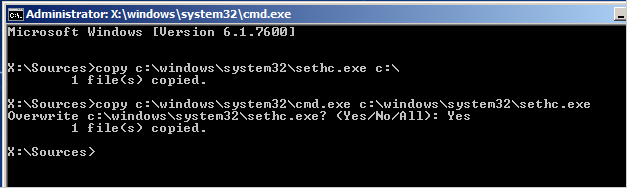
Step 4: Now The Real Trick,Type The below Command to backup the original Sticky keys File. 
copy c:\windows\system32\sethc.exe c:\


Step 5: Now Copy The Command Prompt Executable on top of the sticky keys executable :


copy c:\windows\system32\cmd.exe c:\windows\system32\sethc.exe


Follow The below Pic For More Idea on It.

How to Reset Your Forgotten Password In Windows.


Step 6: Now Reboot Your PC.

Step 7: After Rebooting your pc, You will see a login Screen, All You need to do is Hit Shift Key 5 Times, You will get a Command Promt.

Step 8 : Now to Reset Your Password just replace The Username and passoword with your own In Below line.

net user  MyNewPassword


Thats all Now you can Login.

you probably want to put the original sethc.exe file Back, Then You have to just reboot into the installationCD, Open the Command Promt Again and Copy The 
c:\sethc.exe file back to 

c:\windows\system32\sethc.exe.


Enjoy, Keep Learning.

 Enable Hibernate Mode in Windows 8

The bottom right hand hot corner presents power settings. If you do not see the hibernate option there, then it probably means that it is disabled or not active. Following steps should be performed to enable hibernate option in W8.
First thing first, you need to edit registry to see whether the Hibernate option has been disabled by default or not. In order to do that, you should navigate to following path
HKEY_LOCAL_MACHINE\SYSTEM\CurrentControlSet\Control\Power
Note: Always backup registry before you perform any task. It could make or break your device. Having a backup in the handy place will always help in rollback any changes (read mess) you made.
Step 1: Press WinKey + R to open run command.
regedit run command
Step 2: Type regedit and press enter button.
Step 3: This will open a registry editor module in the separate window. Now navigate to the below path.
HKEY_LOCAL_MACHINE\SYSTEM\CurrentControlSet\Control\Power
Step 4: As displayed in the right hand pane (check below screenshot), look for the option called HibernateEnabled. If the value of this registry entry is 0, then it means it is disabled. You should right click and modify the entry to 1. This will enable hibernate mode in Windows 8.
enable hibernate through registry
Step 5: One again, check the power option from the bottom right hot corner. If you still aren’t finding Hibernate option, then perform the following steps.
Step 6: In case, if the hibernate option is not present, it indicates that you need to change power settings.
Step 7: Go to Control panel –> Hardware and Sound –> Power Options. You will find something similar to this.
power options
Step 8: Select a ‘Choose what the power buttons do’ from the left hand menu option. It should bring something like this.
change power settings
Step 9: You will find blurred out option. In order to enable them click on ‘Change settings that are currently unavailable‘ option as highlighted in the screenshot.
Step 10: Now from there, select the Hibernate option. Save the changes. It should bring the Hibernate option in the power button as shown below. There is no need to restart for this operation to perform.
enable hibernate option
hibernate option enabled
Isn’t it a piece of cake? Have you lost us somewhere in between or have you any trouble understanding the steps above? Let us know, so we can help you out to enable Hibernate option on Windows 8.

Hi Friends, Earlier back I posted How to Password protect your Usb Drive, But today i will Post iT in a more better and clear way.
 Bitlocker is Not much known technology By Windows Which helps you to Password protect and Encrypt Your Content in Usb Drives.


Just Follow the below simple Steps :

Step 1 : Insert Pendrive which you want to password Protect.

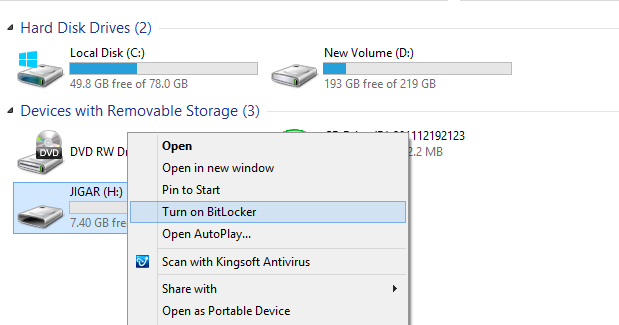
Step 2: Open explorer and Right click on your Removable drive and Select "Turn OnBitlocker"


Step 3: After you click on Turn On bitlocker, Wizard will be open, Check "Use a password to Unlock the Drive"

Step 4 : Now type In the Password you want and Click Next.

Step 5: Now you will be asked "How Do You want to back up Recovery Keys " Choose From the options 


Step 6 : You then have to choose whether your drive is already in use or if it is new. Then click next.


Step 7 : Choose how much Of Your Drive to Encrypt, Entire drive or Just Used Disk Space.


Step 8 : Atlast Click on Start Encrypting, Encrypting Process Will start.

Now Whenever you Want to use it, plugin the encrypted Drive in you Computer it will give you a notificationWith it is Bitlocker Protected, You have to just click on it,  Enter your password and click on Unlock Button.

Thats it,

Keep your Content in pendrive Protected with this trick. I tried my best to Keep the Tutorial Simple.
Keep visiting, keep Learning.

Facebook Login Page
Hi Friends..!!
I am back with another facebook prank which you can play on your friends. This prank is totally based on the Inspect Element in Google Chrome (This trick will work ONLY in Google Chrome). This is a very easy trick just right click on the element or part of the page you want to change. In case you want to change the introductory line. Right click on it and click on Inspect Element. You will see a dialog box will open below. Now you will see text displayed as
 
 
''Facebook helps you connect and share with the people in your life.' ' .

Inspect Element dialog box
Right click on the line and select Edit as HTML. You can edit it and write anything you want. If you want to edit the main image of facebook you can do it by the same steps and put your picture there and fool your friends. Try out this trick and Enjoy...!!!


Hi Friends,
We all know that we cannot use any sim in any modem without getting the modem unlocked (except few modems which allow all sims like Micromax). But now we can use any sim in an modem without getting the modem unlocked with the helpNokia Pc Suite. If you don't have it Download here.
Now just follow these simple steps to use your sim in any modem ↓↓


Insert your sim in the modem and plug your modem in the computer.
Now it will display the message Invalid Sim or No sim Present.
Ignore that message and open Nokia Pc Suite. Click on connect to the Internet option in Nokia Pc Suite.
Now go to configure and make all the operator setting as you do when you use Nokia Pc Suite.
When you finish with your setting connect through the Pc Suite.
Now you are connected without unlocking your Modem.Enjoy ;)

Note-This trick is working and personally tested by me...!!!

Hey Readers ,
 Though many of you know this trick but there are still many who don't know this trick. This is a very simple trick which you can use if you have forgotten your password or you want to enter into somebody's computer .Just follow these simple steps --↓↓


    Start Your Computer.
    When it asks for the password of your victim press Ctrl+Alt+Del  Keys twice.
    Now another window will open asking User Name and Password.
    Enter ADMINISTRATOR in User Name and leave the Password field blank and press enter.
    Congrats ! Now you are logged in the computer without the password...!!

Hi Guys ,
Today I will teach you a trick which will save a lot of your time. Sometimes we are in a hurry and want to shutdown our systems fast but it takes more than 20 seconds to shut down. So, today i will teach you how to shut down your computer in one second..!!!

Right click on windows task bar.
Select task manager.
Select shutdown button in Start menu.
You will see options like standby, hibernate,turnoff, restart.
Hold control key and press shutdown button and see the trick your system shuts down in 1 second..!!!

Nowadays people are very interested in using wireless devices. Technology is improving day by day, everyone have started to use hybrid technology products like touch screen laptops, iPhone, iPad and etc... 

So I'll come to the point, mostly we are using wireless internet connection to access web via above mentioned devices. If you are using a wireless internet connection, you will set a password protection on your wireless network due to security reason.


How to Check Who else Connected on my Wi-Fi Network
Like technology is improving, hacker and cracker are also increasing every day. So there are possibilities of anyone accessing internet through your wireless network but this is not identical. 
Don't worry, here I have a solution to identify who are the people connected to your wireless network.

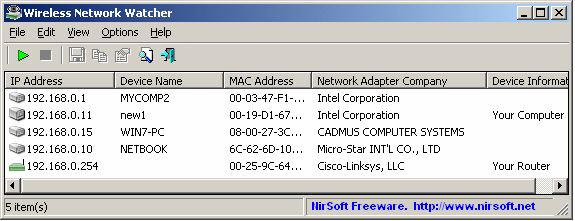
Wireless Network Watcher is introduced to identify who have connected on your wireless network. Wireless Network Watcher is a utility that scans the wireless network and shows a list of all PC and devices connected to your wireless network.


Download Free Wireless Network Watcher

This free tool provides you the following information on your wireless network.
IP Address
MAC Address
The company that manufactured the network card
Optionally the computer name
 

Speakers No Sound Laptop Computer

As all we know Laptops doesn't
generate the perfect amount of sound that the user can get out from a Desktop PC. Laptop PCs can't give the best and the highest sound level to hear some low voices. Even though we can Increase the Laptop Sound Level to the max than it can give. This trick is a simple tweak configuration steps
that's provided by Windows Vista, Windows 7 and probably Windows 8.
Here are the few steps I did to Boost my Laptop Sound Level to the maximum.

Steps::

1) Go to Start > Control Panel

2) Click Hardware and Sound

3) Click the Manage audio devices link.

4) Select the device that you are using 

(e.g: Speakers ) then click Properties

5) Click Enhancements tab for all list of amelioration.

6) Check the effect that says"Loudness Equalization"

7) Click OK to apply all changes.

Done! Now open any media audio fileand test the new Perfect sound without any noises that can be generated by the speakers (totally perfect and clean).
Are you a Windows 8 users? Did you upgrade your Windows XP, Vista, 7 PCs to Windows 8 operating system? If you are a Windows 8 user, here I have a very useful suggestion for you. Mostly we install every basic software separately on our PC like web browsers, media player application. 


All in One Software for Windows 8, One Click Installer for Popular Freeware Utilities

Most of us don't know about Ninite.com site. The site offers us all the basic software's latest version for all Windows PCs. The most special thing on this site is user can install All the popular freeware with one installation. Ninite.com offers around 94 popular freeware latest version. You can get all the basic software' latest version here such as Google Chrome, Mozilla Firefox, VLC Media player, Flash player, Antivirus software etc....

How to Setup Ninite for Windows 8?

Go to official Ninite.com site.

Select Windows from the top left edge of the page. 


All in One Software for Windows 8, One Click Installer for Popular Freeware Utilities

Now site will offer you lots of popular and basic freeware and open source apps' latest version in category vice like Web Browsers, Media, Security etc...

Now you have to put a tick on your favorite freeware which in the list.


All in One Software for Windows 8, One Click Installer for Popular Freeware Utilities

After selecting all the software, scroll down the mouse to bottom of the page and click on Get Installer.
All in One Software for Windows 8, One Click Installer for Popular Freeware Utilities

That's all, now all the freeware will start to download automatically.


All in One Software for Windows 8, One Click Installer for Popular Freeware Utilities

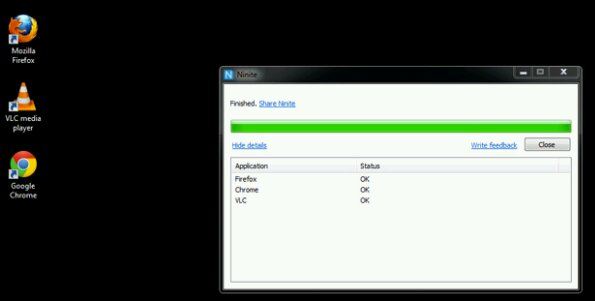
After all, your favorite apps will installed on your PC, it will create a shortcut for each and every apps on your desktop.
Microsoft's Windows 8 operating system has become the most successful product in Microsoft history. Huge amount of Windows users are moving to Windows 8 everyday. If you have still not upgraded your PC to Windows 8, click here to know how to upgrade to Windows 8 successfully.

So today I'll share a tip related to Windows 8 for you. If you are still using Windows 7 as your operating system, you can simply customize it into Windows 8 interface with Windows 8 Skin Pack. This free skin pack allows you to change the following interface to Windows 8 looks.


Download Windows 8 Skin Pack for Windows 7


The new “betta” fish boot screen. 
A brand new login screen. 
New start screen. 
New Windows 8 logo. 
New start button. 
Custom metro visual style. 
New desktop backgrounds. 
Taskbar user picture tile. 
New window borders. 
New shell style. 
New installer. 
New about Windows box. 
Metro navigation buttons.

Download Windows 8 Skin Pack for Windows 7 32-bit


Who Used Your Pc In Your Absence,what Did He Do?

first you should go

"start > run >eventvwr.msc"

Events are stored in three log files: Application, Security, and System. These logs can be reviewed and archived.

For our purposes we want the System/Windows log. Click on "System" in the left-hand column for a list of events.


Look for a date and time when you weren't home and your computer should have been off.

double click on the eg: info n it will show u the detail.

You can also use this log to see how long someone was on the computer. Just look at the time the computer was turned on and off for that day.

Windows Repair is an all-in-one repair tool to help fix a large majority of known Windows problems including registry errors and file permissions as well as issues with Internet Explorer, Windows Update, Windows Firewall and more. Malware and installed programs can modify your default settings. With Tweaking.com - Windows Repair you can restore Windows original settings.

Windows Repair can do the following:

Reset Registry Permissions
Reset File Permissions
Register System Files
Repair WMI
Repair Windows Firewall
Repair Internet Explorer
Repair MDAC & MS Jet
Repair Hosts File
Remove Policies Set By Infections
Repair Icons
Repair Winsock & DNS Cache
Remove Temp Files
Repair Proxy Settings
Unhide Non System Files
Repair Windows Updates
and more...

download links :-

http://turbobit.net/yaeomz1m0ghf.html
| Full Version | 5.26/8.89 MB

Windows Repair

Many Times the registry entries or files of our system got corrupted because of viruses or other reasons, in this case for repairing windows XP we format our system or repair windows xp by some other ways like by using Bootable cd method. But through this method we can repair our windows xp without using Bootable cd or Formatting System.

This Method is Called
Web Folders XP Repairing System.


Follow The Steps for Repairing Windows Xp :

Click On Start and Goto Run. 

In Run Type webfldrs.msi 

New Window Will Open In Your Screen Now Click On Select Reinstall Mode. 

Again New Window Will Open In Your Screen Just Tick Marks On all the Options and Click Ok. 

It Will Take Some Time in Repairing Your Windows XP and When the Process will be Completed it will ask to Restart your System then Just Restart your System. 


That's It, By Using This Method Your Windows XP will be repaired without using bootable cd or Formatting.
Hi , In this Article we give away the Windows Loader that can makes the Windows Xp,Vista and Windows 7 Genuine. This software will helps you supply the serial and Crackfor your Xp,vista and windows7 .So your Os is Genuine now by using this Loader . Many Users facing the Problem about Os genuine but by using this you can able to applyoriginal serial key for your current Operating System .This is called as Triple OS Genuine Activator .
This Activator is of Command based loader you can having the Three options in this .By selecting the Os you can able to apply the serial for it . See the Image Below.


If you want to make your xp genuine type xp as command aswell as if you want vista type vista as command , and if you want to make windows 7 genuine type seven as a command and press enter .
In the xp you have windows xp home regular activator for sp1/2/3 32/64bit and Windows Xp Pro Activation sp1/2/3.


In the Windows Vista Activators we have Windows Activation v1.0 , Dos ActivationUltimate sp1/2 32/64 bit and vista regular Activator 32/64 bit sp0/1 v1.0.


In the Seven Loader we have 5 types of activators use any one of them and Activate your Windows .Type the Command as Follows to make your Windows Genuine. See the Image below example type command as s1 for 7Loader by Orbit 30. Do the same procedure for Xp and Vista.


Download :-

Download Link :- Xp,Vista,Seven Loader.
 
That's it By using this Windows Activator you can able to make your windows Xp,Vista and Windows 7 Genuine. This is called as Triple OS Genuine Activator. 

Thank You For Visiting .

 
Related Posts Plugin for WordPress, Blogger...