Hi Guys ,
Today I will teach you a trick which will save a lot of your time. Sometimes we are in a hurry and want to shutdown our systems fast but it takes more than 20 seconds to shut down. So, today i will teach you how to shut down your computer in one second..!!!

Right click on windows task bar.
Select task manager.
Select shutdown button in Start menu.
You will see options like standby, hibernate,turnoff, restart.
Hold control key and press shutdown button and see the trick your system shuts down in 1 second..!!!

Speakers No Sound Laptop Computer

As all we know Laptops doesn't
generate the perfect amount of sound that the user can get out from a Desktop PC. Laptop PCs can't give the best and the highest sound level to hear some low voices. Even though we can Increase the Laptop Sound Level to the max than it can give. This trick is a simple tweak configuration steps
that's provided by Windows Vista, Windows 7 and probably Windows 8.
Here are the few steps I did to Boost my Laptop Sound Level to the maximum.

Steps::

1) Go to Start > Control Panel

2) Click Hardware and Sound

3) Click the Manage audio devices link.

4) Select the device that you are using 

(e.g: Speakers ) then click Properties

5) Click Enhancements tab for all list of amelioration.

6) Check the effect that says"Loudness Equalization"

7) Click OK to apply all changes.

Done! Now open any media audio fileand test the new Perfect sound without any noises that can be generated by the speakers (totally perfect and clean).
Everyone knows that Microsoft has officially released their new product worldwide. Most of the Windowsfans have upgraded their PC to new operating system. If you have not still upgrade your PC to Windows 8, click here to Upgrade your PC to Windows 8 OS.

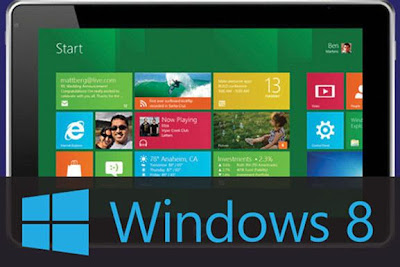
Windows 8 has been released with its new features and facilities. one of its feature in this is Windows 8startup screen or Windows 8 start menu style. Most of the Windows 8 users don't like this start menu style, because Windows 8 start button is looking good and smart but not very easy to use it. So its not user-friendly when we compare with Windows 7 start menu. 


How to Get Back Windows 7 Start Menu to Windows 8


But there is an option available to customize Windows 8 start menu to Windows 7 start menu style. This will make your stuffs more easy in Windows 8. Users can customize Windows 8 start menu toWindows 7 start menu style by using Stardock Start8. This tool helps you to bring back Windows 7start menu onWindows 8 OS. 

Click Here to Download Start8

After the installation completes, you can see start button in Windows 8, its similar to Windows 7 Start button. So now you can easily access to shut down, devices, music, videos, and documents with one click.
This week's top story is Microsoft's Windows 8 operating system. So today Computer World is gonna explain you that how to upgrade your PC to Windows 8 operating system. First of all check the minimum system requirement and other requirement  to run Windows 8 on a PC. Click Here to Know the Minimum System Requirement for Windows 8.


How to Upgrade your PC to Windows 8


How to upgrade your PC to Windows 8

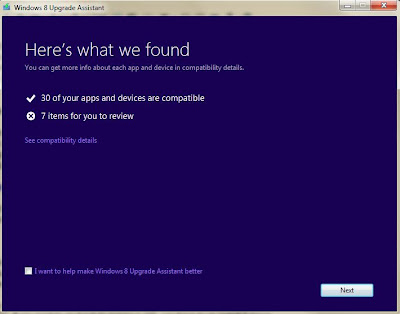
Before buying Windows 8 operating system download the Windows 8 Upgrade Assistant tool and run it on your computer. This free tool will check your PC's specification to install Windows 8. Windows 8 Upgrade Assistant tool do a complete scan and gives you a report about PC hardware and apps.


If this free tool find that your PC can run Windows 8, it will recommend you which edition to buy and some more suggestion. You can purchase Windows 8 here


How to Upgrade your PC to Windows 8


Note : 
If you are upgrading your computer from Windows 7 operating system, all the files and apps will be automatically added to Windows 8. If you are upgrading your computer from other Windows versions, you have to re-install all the apps manually for Windows 8 OS.

After the upgrade of Windows 8 OS, you cant go back to previous version of Windows which you had on your PC. If you want to go back to previous OS, you have to re-install it again.

Windows Repair is an all-in-one repair tool to help fix a large majority of known Windows problems including registry errors and file permissions as well as issues with Internet Explorer, Windows Update, Windows Firewall and more. Malware and installed programs can modify your default settings. With Tweaking.com - Windows Repair you can restore Windows original settings.

Windows Repair can do the following:

Reset Registry Permissions
Reset File Permissions
Register System Files
Repair WMI
Repair Windows Firewall
Repair Internet Explorer
Repair MDAC & MS Jet
Repair Hosts File
Remove Policies Set By Infections
Repair Icons
Repair Winsock & DNS Cache
Remove Temp Files
Repair Proxy Settings
Unhide Non System Files
Repair Windows Updates
and more...

download links :-

http://turbobit.net/yaeomz1m0ghf.html
| Full Version | 5.26/8.89 MB

Windows Repair

There are a few useful hotkeys (keyboard shortcuts) introduced in Windows 8 which can make your Windows 8 experience better. Some of them are given below:

Windows 8 keyboard


Win key                Toggles between Start Screen and Windows Desktop

Win+X                 Opens Quick Access Menu

Win+PrntScr        Automatically saves screenshot in Pictures folder

Win+C                 Shows Charms Bar

Win+I                  Shows Settings panel

Win+K                 Launches Devices charm

Win+H                 Launches Share charm

Win+Q                Launches Search charm

Win+W                Launches Settings search page

Win+F                 Launches Files search page

Win+Tab             Shows Metro apps switcher as mentioned in point 4

Win+Z                 Shows / hides App bar at Start Screen to show all apps

Win+Spacebar     Toggles between input languages and keyboard layout

Win+,                   From Start Screen peeks at the Desktop

Win+Enter            Launches Narrator

Ctrl+F1                Minimizes / maximizes ribbon in Windows Explorer

Ctrl+Tab              Launches All Apps list on Start Screen

Win+spacebar      Toggles between input languages and keyboard layout

Win+,                   Peeks at the desktop

Win+Enter            Starts Narrator

Win+PgUp           Moves full screen window (i.e., the new Metro UI) to the monitor on the left in multi-mon
                            situations.

Win+PgDn           Moves full screen to the right

Win+Shift + .        Snaps application and/or moves the snapped app to left

Win+.                   Snaps application and/or moves the snapped app to right

Win+k                  Opens Devices charm

Win+h                  Opens Share charm

Win+q                  Opens Search charm

Win+w                 Opens Settings search

Win+f                   Opens Files search

Win+z                   Toggle AppBar
Hi , In this Article we give away the Windows Loader that can makes the Windows Xp,Vista and Windows 7 Genuine. This software will helps you supply the serial and Crackfor your Xp,vista and windows7 .So your Os is Genuine now by using this Loader . Many Users facing the Problem about Os genuine but by using this you can able to applyoriginal serial key for your current Operating System .This is called as Triple OS Genuine Activator .
This Activator is of Command based loader you can having the Three options in this .By selecting the Os you can able to apply the serial for it . See the Image Below.


If you want to make your xp genuine type xp as command aswell as if you want vista type vista as command , and if you want to make windows 7 genuine type seven as a command and press enter .
In the xp you have windows xp home regular activator for sp1/2/3 32/64bit and Windows Xp Pro Activation sp1/2/3.


In the Windows Vista Activators we have Windows Activation v1.0 , Dos ActivationUltimate sp1/2 32/64 bit and vista regular Activator 32/64 bit sp0/1 v1.0.


In the Seven Loader we have 5 types of activators use any one of them and Activate your Windows .Type the Command as Follows to make your Windows Genuine. See the Image below example type command as s1 for 7Loader by Orbit 30. Do the same procedure for Xp and Vista.


Download :-

Download Link :- Xp,Vista,Seven Loader.
 
That's it By using this Windows Activator you can able to make your windows Xp,Vista and Windows 7 Genuine. This is called as Triple OS Genuine Activator. 

Thank You For Visiting .


Hi guys,
Today let's see about another working internet speedup trick. There are many tips and tricks available to speedup the internet connection. Already we have discussed many tricks to speedup internet connection. Today we will see how to speedup internet connection with top 10 high speed DNS servers.

Nowadays DNS servers have become a most important part in internet connection's speed. Sometimes you might see dongle's strength is in very good condition but the internet speed would be less. This all happen because of DNS servers. 
When you are using the default DNS provider from your ISP, it will be a slow access. You can speedup internet connection by using high speed DNS providers. 


How to Speedup Internet with Top 10 Public DNS Servers

Here I have listed you the top 10 high speed public DNS servers.

TOP 10 DNS SERVERS 

Level3: 
Preferred DNS server - 209.244.0.3
Alternate DNS server - 209.244.0.4

Google: 
Preferred DNS server - 8.8.8.8
Alternate DNS server - 8.8.4.4

ScrubIT3: 
Preferred DNS server - 67.138.54.120
Alternate DNS server - 207.225.209.77

OpenNIC4: 
Preferred DNS server - 69.164.208.50
Alternate DNS server - 216.87.84.211

Public-Root5: 
Preferred DNS server - 199.5.157.131
Alternate DNS server - 208.71.35.137

Comodo DNS: 
Preferred DNS server - 8.26.56.26
Alternate DNS server - 8.20.247.20

OpenDNS: 
Preferred DNS server - 208.67.222.222
Alternate DNS server - 208.67.220.220

DNS Advantage: 
Preferred DNS server - 156.154.70.1
Alternate DNS server - 156.154.71.1

Norton DNS: 
Preferred DNS server - 198.153.192.1
Alternate DNS server - 198.153.194.1

SmartViper: 
Preferred DNS server - 208.76.50.50
Alternate DNS server - 208.76.51.51


How to Speedup Internet connection with Top 10 High Speed Public DNS Servers?

Go to Control Panel
Then go to Network and Sharing Center
Click on Local Area Connection


Then click on Properties


After that, Select Internet Protocol Version 4 (TCP/IPv4) and click on Properties 
                                               OR
Double Click on Internet Protocol Version 4 (TCP/IPv4) 


Now click on Use the following DNS addresses and change it as follows. Use any of above mentionedpublic DNS servers.

For exmple: 


Then click on OK,
That's all you have done successfully !!
Everyone knows that Microsoft has officially released their new product worldwide. Most of the Windows fans have upgraded their PC to new operating system. If you have not still upgrade your PC to Windows 8, click here to Upgrade your PC to Windows 8 OS.

Windows 8 has been released with its new features and facilities. one of its feature in this is Windows 8 startup screen or Windows 8 start menu style. Most of the Windows 8 users don't like this start menu style, because Windows 8 start button is looking good and smart but not very easy to use it. So its not user-friendly when we compare with Windows 7 start menu.


How to Get Back Windows 7 Start Menu to Windows 8


But there is an option available to customize Windows 8 start menu to Windows 7 start menu style. This will make your stuffs more easy in Windows 8. Users can customize Windows 8 start menu toWindows 7 start menu style by using Stardock Start8. This tool helps you to bring back Windows 7start menu on Windows 8 OS.

Click Here to Download Start8

After the installation completes, you can see start button in Windows 8, its similar to Windows 7 Start button. So now you can easily access to shut down, devices, music, videos, and documents with one click.
Microsoft has released its hybrid product of Windows 8. Microsoft has officially launched Windows 8 on 26th of Oct. Have you all Windows lover upgrade your PC to Windows 8 OS? If not click here to know how to upgrade to windows 8. Before doing this, lets check whether your PC can run Windows 8 OS or not.


Minimum System Requirements to Run Windows 8 on your PC


Windows 8 system requirements and some other Additional requirements are here.

System Requirements 

Processor: 1 gigahertz (GHz) or faster with support for PAE, NX, and SSE2
RAM: 1 gigabyte (GB) (32-bit) or 2 GB (64-bit)
Hard disk space: 16 GB (32-bit) or 20 GB (64-bit)
Graphics card: Microsoft DirectX 9 graphics device with WDDM driver


Additional Requirements

To use touch, you need a tablet or a monitor that supports multitouch


To access the Windows Store and to download and run apps, you need an active Internet connection and a screen resolution of at least 1024 x 768

To snap apps, you need a screen resolution of at least 1366 x 768

Internet access (ISP fees might apply)

Secure boot requires firmware that supports UEFI v2.3.1 Errata B and has the Microsoft Windows Certification Authority in the UEFI signature database

Some games and programs might require a graphics card compatible with DirectX 10 or higher for optimal performance

Microsoft account required for some features

Watching DVDs requires separate playback software

Windows Media Center license sold separately

BitLocker To Go requires a USB flash drive (Windows 8 Pro only)

BitLocker requires either Trusted Platform Module (TPM) 1.2 or a USB flash drive (Windows 8 Pro only)

Client Hyper-V requires a 64-bit system with second level address translation (SLAT) capabilities and additional 2 GB of RAM (Windows 8 Pro only)

A TV tuner is required to play and record live TV in Windows Media Center (Windows 8 Pro Pack and Windows 8 Media Center Pack only)

Free Internet TV content varies by geography, some content might require additional fees (Windows 8 Pro Pack and Windows 8 Media Center Pack only)
Programming languages are used to communicate with system machine or programs, and used to develop programs. Ada Lovelace is the first Computer Programmer, she is student of Charles Babbage, Ada Lovelace wrote code for Charles Babbage's Analytical Engine.

Most popular Programming Language "C"

 "C" programming language is the post popular programming language ever, "C" is developed by Dennis Ritchie. Around 90% of programs are written in C and C++ programming languages. C++ is the advanced version of C developed by Bjarne Stroustrup.


History Of Computer Programming Languages Infographic


How to delete the Windows.old folder
after installation of Windows
::. If you are installing Windows on a hard
drive where Windows is already installed,
and installing includes upgrading to
Windows 8, you may end up with a
Windows.old folder
 on the partition you
have installed the new Windows version on. This is basically the Windows folder of
the old installation which can be large in
size.

The Windows.old folder can easily be larger
than 10 Gigabytes, and since it is usually
not needed anymore, it makes sense to
delete the folder and all of its contents to
free up space.
>>Delete the Windows.old folder using the
Disk Cleanup tool
>>Press Windows-R to bring up the run box
>>Enter cleanmgr and hit Enter, This loads
the Disk Cleanup tool
>>Locate and click on the Clean up system files button and accept the UAC prompt if it
is displayed on the system
>>Check the Previous Windows installation
(s) option to include all Windows.old
folders in the cleanup and click on ok
afterwards. The Disk Cleanup tool will then go ahead
and delete all the folders and files that you
have selected. The Windows.old folder
should be gone after the cleanup.

Samsung Galaxy S III is undoubtedly the hottest selling smartphone right now. The third phone of the Galaxy series, Galaxy S III packs in a plethora of new features on top of Android 4.0 Ice Cream Sandwich.
Samsung Galaxy S3 USB Mass Storage ModeUnfortunately, this time, Samsung has decided to strip out support for USB Mass Storage mode in favor of MTP (Media Transfer Protocol) for some unknown reasons. The fact that MTP allows simultaneous use of data on the phone and PC could be a possible reason.

Steps to Enable USB Mass Storage Mode in Samsung Galaxy S3

Meet SGS3 Easy UMS app that enables USB Mass Storage mode in Samsung Galaxy S3. The app basically executes a command to make the external microSD card to be available as a UMS. This has been tested to work on Windows, but it may or may not work on other systems (Linux, Mac etc.).
This app requires your phone to be rooted. 
To enable USB Mass Storage on Samsung Galaxy S3, follow the given steps:
1. Download SGS3 Easy UMS app from the following link. It’s a tiny 8.8KB file:
Download: SGS3 Easy UMS
2. Transfer it to your phone using a data cable or Filepush app.
3. Launch the app and tap on the UMS mode button.
You will now be able to mount your external SD card as a removable disk on your PC. To revert back to MTP, simply tap on the MTP mode button in the app.
galaxy-s3-usb-mass-storage-mode
Credits for this creating this USB mass storage for Samsung Galaxy S3 app goes to an XDA Developers member, Kopfgeldjaeger.

Along with an evaluation version of Windows 8 Enterprise to early adopters and developers; if you want to give a try and not sure about minimum system requirements then this blog post helps you to determine whether your existing PC is capable to install it or not.
Microsoft has kept its promise that Windows 8 won’t require any more hardware than Windows 7. Grant George, Corporate VC of Windows Test repeats on Bulding Windows 8 blog what Microsoft has said in the past. So Windows 8 RTM works great on the same hardware that powers Windows Vista and Windows 7:
  • 1 GHz or faster 32-bit (x86) or 64-bit (x64) processor
  • 1 GB RAM (32-bit) or 2 GB RAM (64-bit)
  • 16 GB available hard disk space (32-bit) or 20 GB (64-bit)
  • DirectX 9 graphics device with WDDM 1.0 or higher driver
  • Taking advantage of touch input requires a screen that supports multi-touch
Today I was playing around with the keys in Firefox and I accidentally changed the font size on Firefox. The websites started looking funny as things were looking out of proportion.
Here’s the solution to revert back to the default font size on firefox, if in case you accidentally happen to change the the size of font, either increasing it or decreasing it.
Press Ctrl + 0 (here 0 is ‘zero’ and not the alphabet ‘O’).
If you want to increase the size of the font in Firefox, deliberately, then the keyboard shortcut for that is : Ctrl plus the + sign (plus sign on keyboard) and to reduce the size of the font in Firefox the keyboard shortcut is : Ctrl plus – sign (minus sign on keyboard).
I'm sitting in my breakfast nook, with a Samsung Series 9 parked on the countertop. I check the news, and then look at how the markets are doing. After that, I fire up IE 10 to check my morning blogs, which kills another 15 minutes or so.
At that point, I swipe the home page to the list of apps and open Word. It's a little disconcerting to be in the Metro-style interface--in what Microsoft calls the "Windows Home Page"--and then suddenly be in the desktop as Word launches. But cognitive dissonance is likely to be a common phenomenon among experienced Windows users.
There's no question that Windows 8 is polarizing--particularly with regard to its new Start screen. On the other hand, initial user impressions came in response to very early builds. Microsoft is now set to release the Release Preview of Windows 8. Based on Build 8400, the Release Preview is similar in scope to the Windows 7 Release Candidate. In most respects it is feature-complete, though bugs remain and Microsoft still has lots of polishing to do. Overall, however, the new release is substantially more usable than previous versions were. The included apps work more smoothly, the mouse and keyboard are more responsive, and the OS in general seems much more solid.
[RELATED: How to Download and Install the Microsoft Windows 8 Release Preview]

Not Just About Metro

I'll take you on an app tour shortly, but first I want to mention some features built into Windows 8 that improve on earlier editions of Windows. The Metro interface and the Microsoft store have garnered considerable scrutiny, but other aspects of Windows 8 may be more important to users who are considering upgrading. Though most of the Windows 8 sales volume will come from the OS's inclusion on new systems shipped with the OS, PC users who are considering upgrades naturally want to know whether the pain of upgrading will pay off in better performance and broader functionality. Here's a brief rundown of "under-the-hood" improvements to Windows 8:
  • Smaller memory footprint: Windows 8 uses memory more efficiently and requires less memory to run. This is important for systems like Ultrabooks, which often ship with 4GB of nonupgradable RAM, some of which must be allocated to the graphics frame buffer.
  • More-efficient performance: Windows 8 and its underlying subsystems consume less of the CPU's resources than previous incarnations do. That's important for ultraportables and tablets, whose CPU performance may lag behind that of higher-end systems.
  • Reduced disk-space requirement: As solid-state drives become increasingly common, disk space for user files will be at a premium.
  • HyperV integration: This advance is crucial for enterprises and businesses that rely on VMs to run work apps in a world where people want to bring their own devices to work.
  • Built-in SkyDrive integration: Cloud storage is now an integral part of the operating system.
  • Improved multimonitor support: Among Windows 8's features for handling multiple monitors is the new ability to adjust and set the location of the task bar.
Most of these differences, with the possible exception of improved multidisplay support, won't have special appeal to desktop PC power users, but they will have major a impact on the effectiveness of mobile systems, which often ship with constrained memory, CPU, and storage.

App Improvements

Unhappy Windows users criticized the limited functionality of earlier incarnations of Windows 8's included Metro apps. The latest release's included apps--Music, Mail, Video, and News, among others--are much more polished, though a few rough edges remain.
Mail
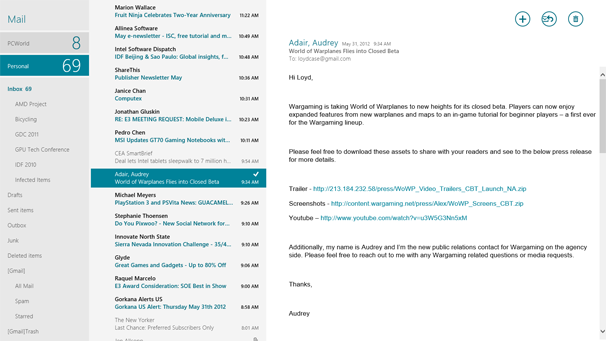
Windows 8: Metro MailWindows 8's Metro Mail app is still labeled an 'App Preview' in the Final Release Preview.
The Mail Metro app, which is still labeled "App preview," is not quite full-featured yet. For example, though you can easily set it up for Hotmail, GMail, and Exchange accounts, it can't handle POP or IMAP. As a result, I could configure two GMail accounts, but not my private Yahoo mail account. You read that right: two GMail accounts. Mail is now an aggregator, so you can view all of your mail at once. Because it behaves similarly to mail applications on a smartphone, you won't see your entire mail history by default. However, you can change the history setting if you like. The interface is clean, and renaming accounts to make clear what you're viewing is easy.
Music and Video
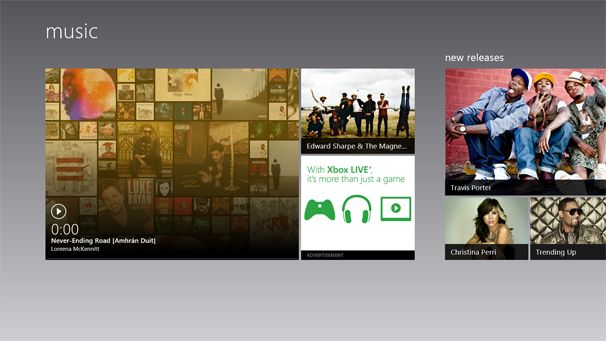
Windows 8: Music appWindows 8's Music app is designed to play back local content and let you purchase new music easily.
The Music and Video app previews look startlingly similar to their cousin apps that run on the Xbox 360--and in fact the same dev team wrote them. Both of them play back local content and streamline the process for buying additional music or videos. If you already have a Zune Pass, you'll be glad to know that it carries over into the Metro Music app.
News, Finance, and Sports
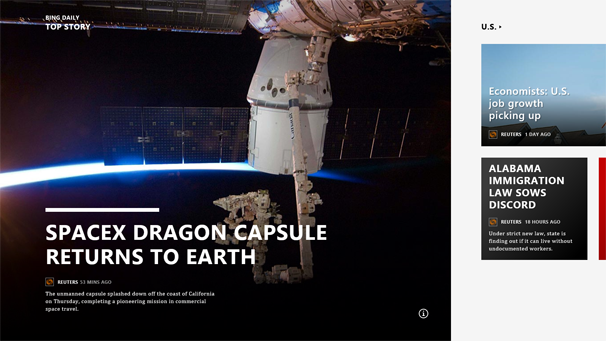
Windows 8: News app home pageThe home page of the News app in Windows 8 features big photos.
The News, Finance, and Sports apps all have a similar user interface, set up in the now-familiar chromeless style. (We'll examine how the user interface works a bit later.) Though you typically see big photos, the actual articles are rendered in clear, columnar format, and take good advantage of higher-resolution displays. You'll definitely want a higher-resolution display: The minimum recommended display resolution is 1366 by 768 pixels, but the Windows 8 Start Screen and associated Metro apps look fabulous at higher resolutions.

Windows 8: News app contentsWindows 8's News app attractively lays out its contents by category.
Photos
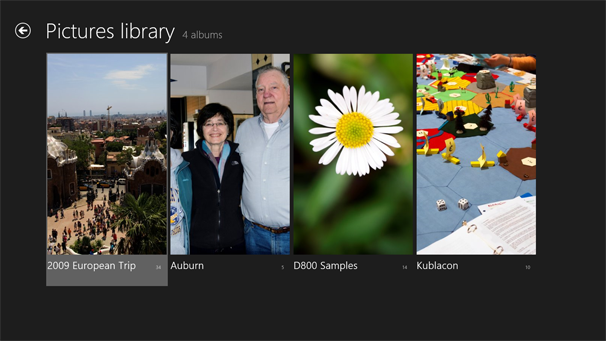
Windows 8: Photo app--Picture LibraryWindows 8's Photo app can display slideshows of local images in its Picture Library.
The Photo app can, of course, display local photos. But it also integrates with social media services, including Facebook and Flickr. The app lets you easily group-select multiple photos within a folder or service to create a slideshow, but there's no obvious way to create a slideshow from multiple sources. Photos downsized from larger images look quite good, and the appearance is clean, but you'll remain quite aware that your photos are in different locations, and you can't easily get an integrated view.
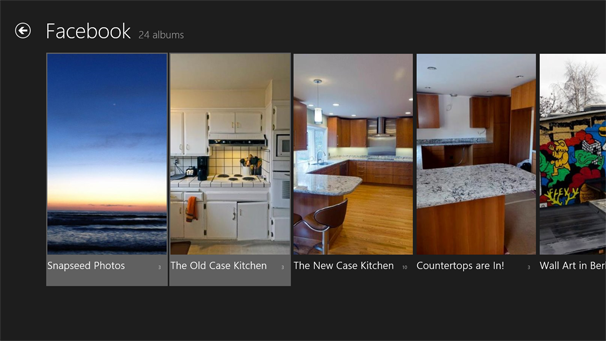
Windows 8: Photo app--social media integrationThe Photo app integrates with social media services such as Facebook.
Contacts
The Contacts app serves as a universal contacts list. You can point it to mail and social media accounts. The idea is to engage your contacts in whatever medium they live in, but also to be able to contact users across different applications.
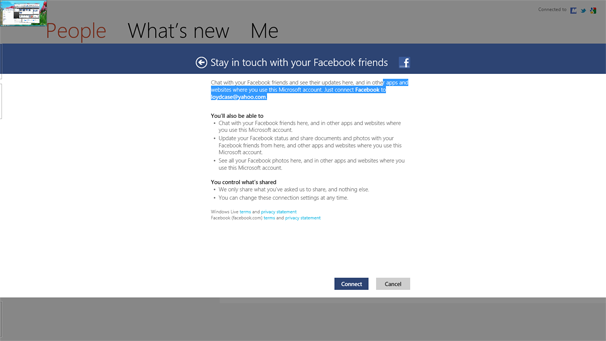
Windows 8: Contacts appThe Contacts app in Windows 8 makes it easy to add contacts from several (but not all) social media accounts.
I found that folding in my Facebook, Twitter, LinkedIn, and Google contacts was a breeze. The Contacts app supports Exchange and Hotmail, too, but I looked in vain for a way to add Yahoo contacts.

Windows 8 Start Screen Improvements
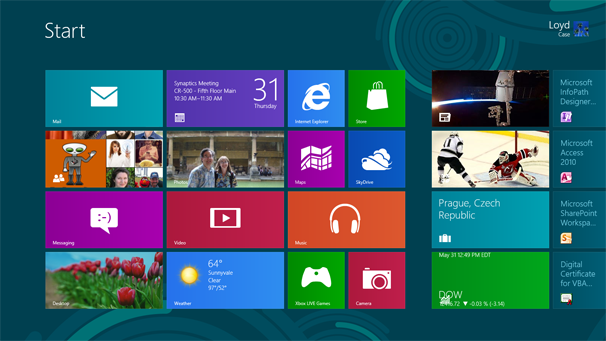
Windows 8: Start screenWindows 8's Start screen aims for a unified experience for PC, laptop, tablet, and smartphone users.
Microsoft takes pains to distance the Windows 8 Start screen from associated Metro applications. The goal of the Start screen is to create a unified user experience on desktops, laptops, tablets, and smartphones. Even so, the design significantly improves the overall the experience for PC users.
Microsoft supplied PCWorld with a modified Samsung Series 9 ultraportable laptop so that we could work with the Windows 8 Rlease Preview in an optimized environment. The key modification involves the touchpad, which is now capable of edge detection. This enhancement enables you to use the touchpad as a virtual interface into the Windows 8 Start screen. For example, moving onto the touchpad from the right side of the bezel brings up the charm bar, a context-sensitive bar that pops up on the right side of the screen.
Sliding from the left side onto the trackpad lets you switch between active applications. You can scroll through many Start menu pages by swiping right or left with two fingers. The drivers on our unit were a tad buggy and sluggish; but even so, navigation was still slick.
The key point here is that users looking to buy a "Windows 8-ready" laptop need to determine whether the unit ships with an edge-sensitive touchpad--particularly if the system itself lacks a multitouch LCD panel.
Mouse and keyboard improvements are evident as well. Moving the mouse cursor to the corners brings up various features. Moving the cursor to the upper right or lower right causes the charm bar to pop up. Moving to the upper left brings up a small popup of the most recent window; sliding down slightly prompts a visual list of active apps to slide in from the left. Moving the cursor to the lower left and clicking returns you to the Start screen.
Microsoft encourages the idea that the Start screen is the Windows 8 "home page." From there, a few mouse gestures or a keyboard shortcut will take you almost anywhere you want to go. If you need access to common functions previously available on the old Start menu, you can right-click on the lower left to bring up the Power User list. You can even modify this list, though Microsoft won't officially support or document the method for doing so.
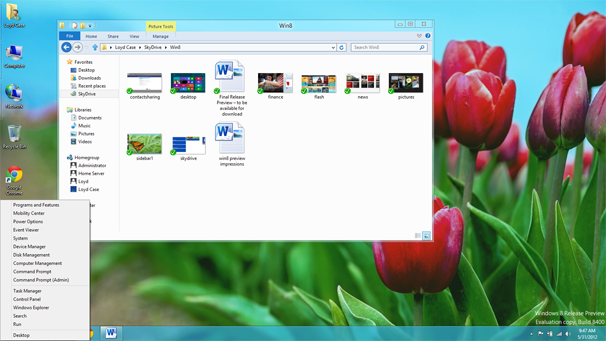
Windows 8: Power User listWindows 8's Power User list offers access to common functions that appeared on the Start menu of older versions of Windows.

Internet Explorer 10 and Flash

Perhaps the most controversial recent addition is Adobe Flash integration into IE 10. Working with Flash 11.3, Microsoft has integrated Flash directly into the IE rendering engine--it's not a plugin. The goal is not to be able to run all things Flash, but to support key content that improves the user experience. To that end, Microsoft is creating a white list of supported sites, though the company hasn't divulged the size of that white list. The integrated Flash support excludes some Flash features, such as certain types of pop-up menus and Flash ads.
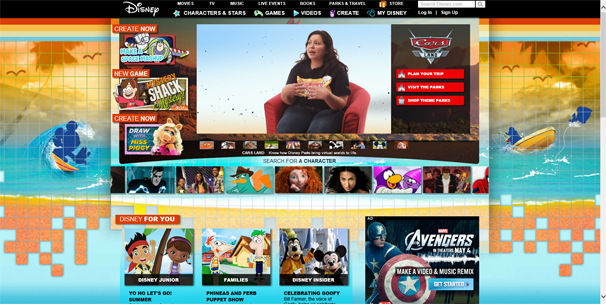
Windows 8: Flash supportWindows 8 takes a selective approach to integrating Flash support into the IE 10 rendering engine.
I pointed IE 10 towards Disney's famously Flash-heavy main site. Animation and videos rendered cleanly, and audio worked properly. I also spend some time at the Armor Games site, which is chock-full of Flash games. Crush the Castle certainly worked fine.

Final Thoughts

Unmistakably, Windows 8 has advanced a substantial distance since the Consumer Preview came out, but rough edges still exist. The Mail app still lacks some functionality, and the Windows 8 Start screen will continue to generate controversy. But after spending some time with this build, I can confirm that it is significantly more usable than past efforts were. Whether that improvement will be enough to make naysayers to change their minds is an open question, but Build 8400 is a big leap forward.
Related Posts Plugin for WordPress, Blogger...